Monitor a job
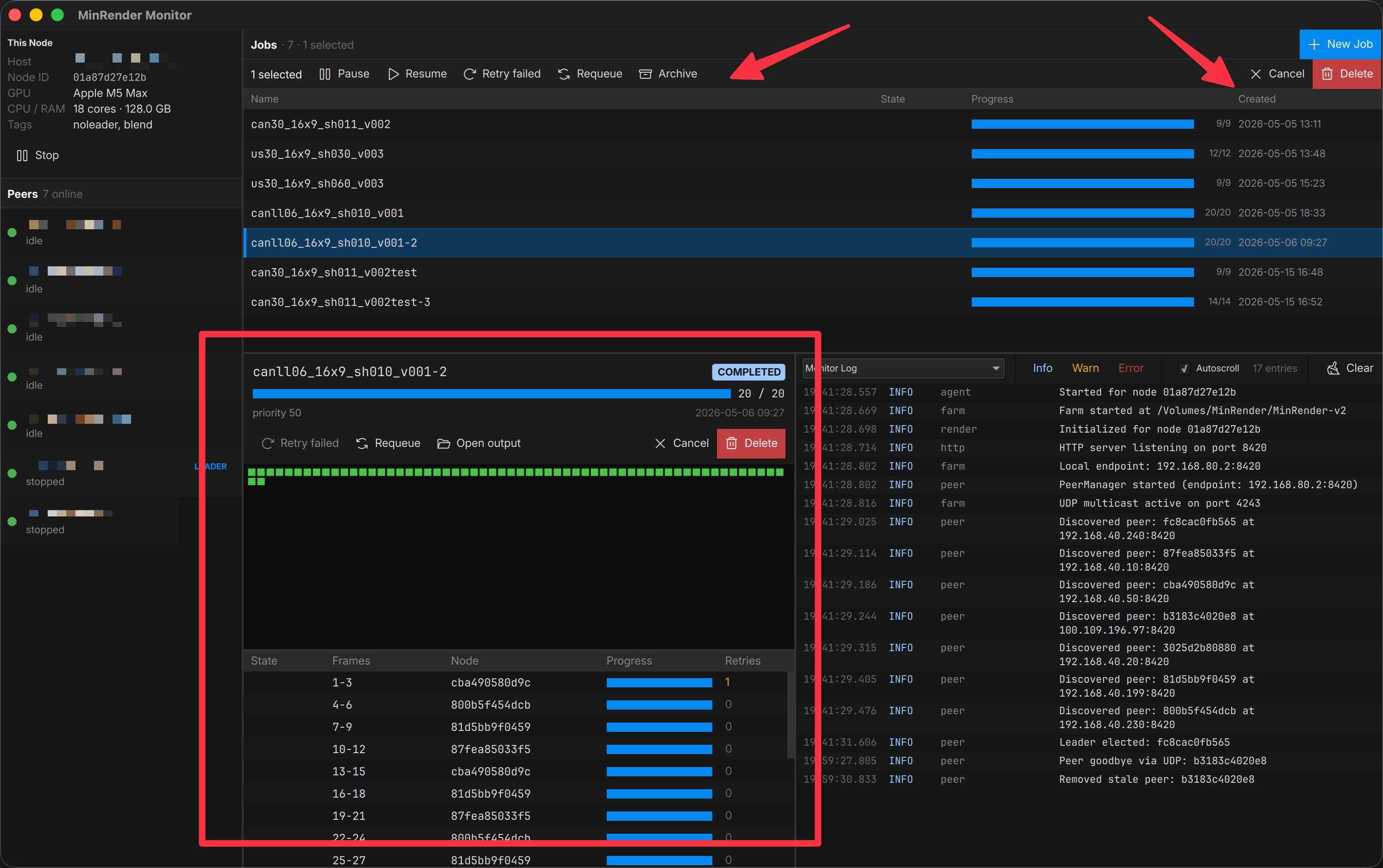
Click any job in the Jobs panel to load it into the detail view. Progress bars and the frame grid live-update from the leader as chunks come back from worker nodes.
Job order & priority
The Jobs panel lists jobs in dispatch order: priority first (lower number = renders sooner, default 50, shown in the Pri column), then queue order within each priority group.
- Drag to reorder — grab the handle on the left edge of a row to move a job up or down within its priority group. An indicator line shows where it will land; the drop is refused across groups, since priority always wins. The new order is live — the next chunk dispatched anywhere on the farm comes from the new front of the queue.
- Change priority — select a job and edit the priority spinner in the detail view. Takes effect on the next dispatch; no requeue needed. The job slots into its new group as if it had been submitted with that priority, and you can drag it from there.
Frame grid colors
The grid shows one cell per frame in the job’s range, coloured by state:
| Color | Meaning |
|---|---|
| grey | Unassigned — no node has claimed this frame yet. |
| blue | Assigned — a node has the frame and is rendering. |
| dark green | Local-staging only: the frame is rendered to the node’s staging dir but hasn’t been copied to the sync root yet. MinRender copies a chunk’s files only once the whole chunk completes. |
| bright green | Done. With local staging on, the file has also been copied to your render folder. |
| red | The chunk containing this frame failed. Use Retry failed in the bulk action strip to re-queue. |
Logs
The Logs panel has three sources, switchable from the dropdown:
- Monitor Log — local structured events from the Monitor itself. Filterable by level (Info / Warn / Error).
- A peer — plain-text log streamed from the agent on another node. Refreshes every 3 s.
- Task Output — per-chunk stdout from the DCC for the currently-selected job. Pick a chunk on the left, see its raw output on the right.
These logs are also written to disk in the sync root under jobs/<job_id>/, so you can tail -f them or open them in a text editor if you’d rather inspect outside the Monitor. They stay around until you delete the job from the Monitor.
Bulk actions
Selecting one or more jobs in the Jobs panel reveals the action strip — Pause, Resume, Retry failed, Requeue, Archive, Cancel, Delete — applied to every selected job. Destructive ops (Cancel, Delete) route through a confirmation dialog so a stray click can’t wipe a batch.
Right-click a single job for the same actions on just that row.
Cancel is immediate and farm-wide. It stops dispatch and kills any in-flight render of that job on every node — the whole renderer process tree, not just the launcher, so background helpers like After Effects’ AfterFX die with it. Nodes other than the one you clicked on notice within a couple of seconds. Cancelled jobs keep their records and can be requeued later. Pause, by contrast, is gentle: in-flight chunks finish, only new dispatch stops.
Because the kill takes the whole process tree, aerender’s
-reusewarm instance does not survive between chunks — every After Effects chunk cold-starts the renderer. Prefer larger chunk sizes for AE jobs if startup time dominates.